



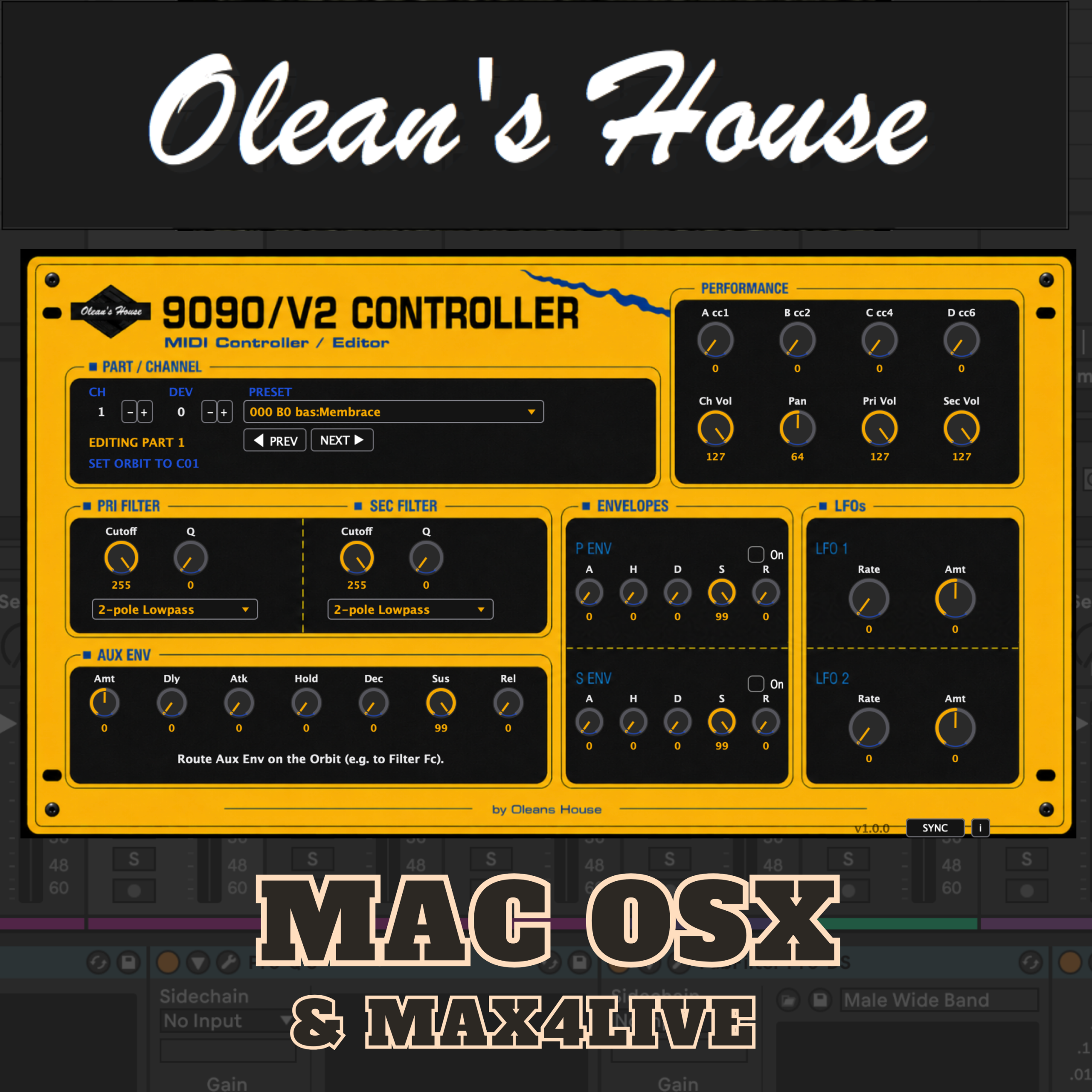
E-MU Orbit 9090 Editor / Librarian VST
A full-screen MIDI control panel for your E-mu Orbit 9090 or Orbit. Every filter, envelope, LFO and preset your Orbit can do — on one screen, recalled and automated by your DAW. Requires the hardware; makes no sound on its own. Watch it in action: https://youtu.be/u9g0JWnMxTQ
Available as a VST3/AU/Standalone plugin for macOS, or as a Max for Live device for Ableton Live users.
Important: the native plugin currently runs on macOS only. Windows users can use the included Max for Live device instead — this requires Ableton Live Suite (or Standard with the Max for Live add-on); Max for Live is not available in Live Intro.
24,00 € incl. VAT

The Orbit is a superb sound module with a small screen and a lot of menu diving. The 9090/V2 Controller puts every editable parameter on one screen — filters, envelopes, LFOs, all 640 factory presets, and a 16-part mixer — and lets your DAW automate and recall it with your project, the way it already does for every other instrument on your desk.
Before you buy: what this is, and isn’t
This plugin generates no audio. It’s a control surface that sends MIDI to your Orbit — the sound itself still comes out of the Orbit’s own audio outputs, into your interface, same as it always has. You’ll need the hardware; this doesn’t replace it.
What it does
- Full sound editing — primary and secondary filters (18 types, cutoff, resonance), both envelopes with AHDSR, auxiliary envelope, two LFOs, layer volumes
- All 640 factory presets, by name, with correct Bank Select + Program Change handling across all five banks
- 16-part Multi Mixer — Volume, Pan and Preset for every Orbit part at once, from one plugin instance, each on its own MIDI channel
- Full DAW automation — every control is a standard host parameter; automate and record it exactly like any other plugin
- Never writes to your Orbit’s memory — there is no save-to-hardware command anywhere in this plugin. Your presets are safe; every edit lives in the Orbit’s temporary edit buffer
- Its own MIDI connection — opens a MIDI port directly, so one plugin instance can address all 16 parts independently without your DAW’s routing forcing everything onto one channel
Two tools in the box — pick one, or use both
This download includes two separate ways to control the Orbit, so Windows users aren’t left out even though the native plugin is Mac-only. The plugin opens its own MIDI port directly. The included Max for Live device solves the same problem a different way, using Ableton’s own Live API to steer its track’s MIDI channel — a trick that only works inside Max for Live, but which also runs on Windows, where the plugin can’t. Setup is different for each; the Max for Live download includes its own setup guide.
Formats
VST3, Audio Unit and a Standalone app for macOS. Universal binary (Apple Silicon and Intel). macOS 10.13 or later. Plus a Max for Live device for Ableton Live on macOS or Windows.
Tested against real hardware, in real hosts
Every core function — filter sweeps, envelopes, presets, and the 16-part mixer — has been verified against an actual Orbit 9090/V2, not just in theory. Confirmed hosts: Ableton Live (10.x and 12.x) and GarageBand. It uses standard VST3/AU parameter automation and MIDI, so other compliant hosts should work the same way — but only the hosts above have actually been checked. The Max for Live device has its own, separate hardware pass: all 16 parts responding independently from a single device instance, confirmed on a real Orbit in Ableton Live on macOS.
One thing worth knowing before you buy
Filter, envelope and LFO edits always land on whichever Orbit part its own front panel is currently displaying — that’s how the hardware’s SysEx implementation works, with or without this plugin. Volume, pan and preset changes aren’t affected by this and reach any of the 16 parts directly. The included Quick Start guide walks through exactly what this means in practice — it’s a one-line habit, not a real limitation on what you can do.
Features
- Full sound editing: primary + secondary filters (18 types), both envelopes (AHDSR), auxiliary envelope, two LFOs, layer volumes
- All 640 factory presets by name, correct Bank Select + Program Change across all 5 banks
- 16-part Multi Mixer — Volume, Pan, Preset for every part at once, one plugin instance, each part on its own MIDI channel
- Full DAW automation on every control — standard host parameters
- Never writes to the Orbit’s hardware memory — presets can’t be overwritten by this plugin (asserted by an automated test on every build)
- Opens its own MIDI connection, so channel addressing survives DAWs that would otherwise collapse everything onto one channel
- VST3 · AU · Standalone — universal binary, Apple Silicon + Intel
- Signed and notarized — no Gatekeeper warning on install
- Also includes a Max for Live device — same hardware, runs in Ableton Live on macOS or Windows (Windows expected to work, not yet independently verified)
Requirements
Hardware needed
- An E-mu Orbit 9090 or Orbit V2
- A MIDI interface with a free output
- (Optional, to hear it) the Orbit’s audio outputs cabled to your interface
Plugin (VST3/AU/Standalone) — macOS only
- macOS 10.13 or later, Universal binary (Apple Silicon and Intel)
- Tested against real hardware: Ableton Live 12.4.5 and 10.x, GarageBand (AU)
- Other VST3/AU hosts (Logic, Reaper, Cubase, Bitwig, Studio One, …) are expected to work the same way but haven’t been individually verified yet
Max for Live device — macOS or Windows
- Ableton Live Suite (Max for Live is bundled there), or Standard with the Max for Live add-on — not available in Live Intro
- No OS-specific code — plain JavaScript against the Live API
- Hardware-tested on macOS only. Windows has no known blocker but hasn’t actually been run there — expected to work, not confirmed
Not currently offered, either format
- A native Windows build of the VST3/AU plugin (the Max for Live device is the Windows path for now)
FAQ
I loaded it and I don’t hear anything. Is it broken?
No — this is expected. The plugin makes no sound itself; it’s a remote control that sends MIDI to your Orbit. The sound comes from the Orbit’s own audio outputs. Route those into your audio interface on a separate audio track, alongside the MIDI track carrying this plugin, and you’ll hear it. The Quick Start guide walks through the exact setup.
I moved a filter knob and nothing changed on my Orbit — but volume and presets work fine. What’s wrong?
Two likely causes, in order of likelihood: (1) the Orbit’s own front-panel display isn’t showing the part you’re editing — filter/envelope/LFO edits always land on whichever part the Orbit’s screen is currently on, which is how the hardware’s own SysEx format works; or (2) the plugin’s Device ID doesn’t match the Orbit’s Device ID in its Master menu. Volume, pan and presets aren’t affected by either — that’s why they kept working.
Can I edit multiple parts’ filters/envelopes at the same time?
Not simultaneously — the Orbit’s own hardware only exposes one part’s deep parameters at a time, on its front-panel display, regardless of what sends the MIDI. Volume, pan and presets don’t have this restriction: the Multi Mixer controls all 16 parts at once for those.
Will this overwrite my saved presets?
No. There’s no save-to-hardware command anywhere in the plugin — this is checked by an automated test on every single build. Every edit lives in the Orbit’s temporary edit buffer and is undone the moment you change preset. To keep an edit, save it on the Orbit itself.
Does it work in my DAW?
It’s built on the standard VST3/AU plugin formats, so it should work in any compliant host. It has actually been tested and confirmed against real hardware in Ableton Live (10.x, 12.x) and GarageBand. If you try it in another host, email us and let us know how it goes.
Does it work on Windows?
The VST3/AU/Standalone plugin doesn’t — macOS only. For Windows, use the included Max for Live device instead: it’s plain JavaScript with no OS-specific code, and there’s no known reason it wouldn’t work identically on Windows — but it’s only actually been run and hardware-tested on macOS so far. Treat Windows as expected to work, not yet confirmed. Note the Max for Live device needs Ableton Live Suite (Max for Live is bundled there) or Standard with the Max for Live add-on — it’s not available in Live Intro.
What’s the difference between the plugin and the Max for Live device?
Both control the same Orbit, but they solve “one instance, all 16 parts” differently. The plugin opens its own MIDI port directly. The Max for Live device uses Ableton’s own Live API to steer its track’s MIDI channel — a trick that only works inside Max for Live, but which also runs on Windows, where the plugin can’t. Setup is different for each; the Max for Live download includes its own setup guide. Use whichever matches your rig, or both — they’re both included with your purchase.
Do I need to keep the Orbit’s screen showing the right part all the time?
Only while doing deep sound editing (filters, envelopes, LFOs). Everything else — volume, pan, presets, the whole Multi Mixer — reaches any part regardless of what the Orbit’s screen shows.
What if I have a problem after buying?
Email info@oleanshouse.com and I’ll help you sort it out.
Legal
Unofficial MIDI controller/editor for E-mu Orbit 9090/V2 hardware. Not affiliated with, endorsed by, or sponsored by E-mu Systems or Creative Technology. “E-mu” and “Orbit” are trademarks of their respective owners and are used here only descriptively to state hardware compatibility.